Sitecore AI Multisite: Stop Guessing, Start Choosing
If your company runs more than one website on Sitecore AI (several brands, countries or products), you will face one early question:
How many website applications do we build and run?
The answer affects cost, release speed, risk, and how much freedom each site gets. There is no single right answer, and Sitecore itself leaves the choice to the architect. But there are clear rules of thumb, and this article gives you those in plain language.
First, a two-minute glossary
| Term | In plain English |
|---|---|
| Sitecore AI | The content system where editors write and manage pages. |
| Site | One website's content (pages, shared data, settings) inside Sitecore AI. |
| Site Collection | A group of related sites that can share templates, components and content. Always required, even for one site. |
| Experience Edge | Sitecore's delivery service. When content is published it is stored here, and website apps read it from here. |
| Website app (also "head app" or "rendering host") | The actual program that visitors reach, built with Next.js or ASP.NET Core. |
| Editing host | A copy of the website app that editors use to preview pages while they edit. Not for visitors. |
| Deployment | One running copy of the website app on a hosting platform such as Vercel. |
| Build | The step where the app pre-generates pages before it goes live. |
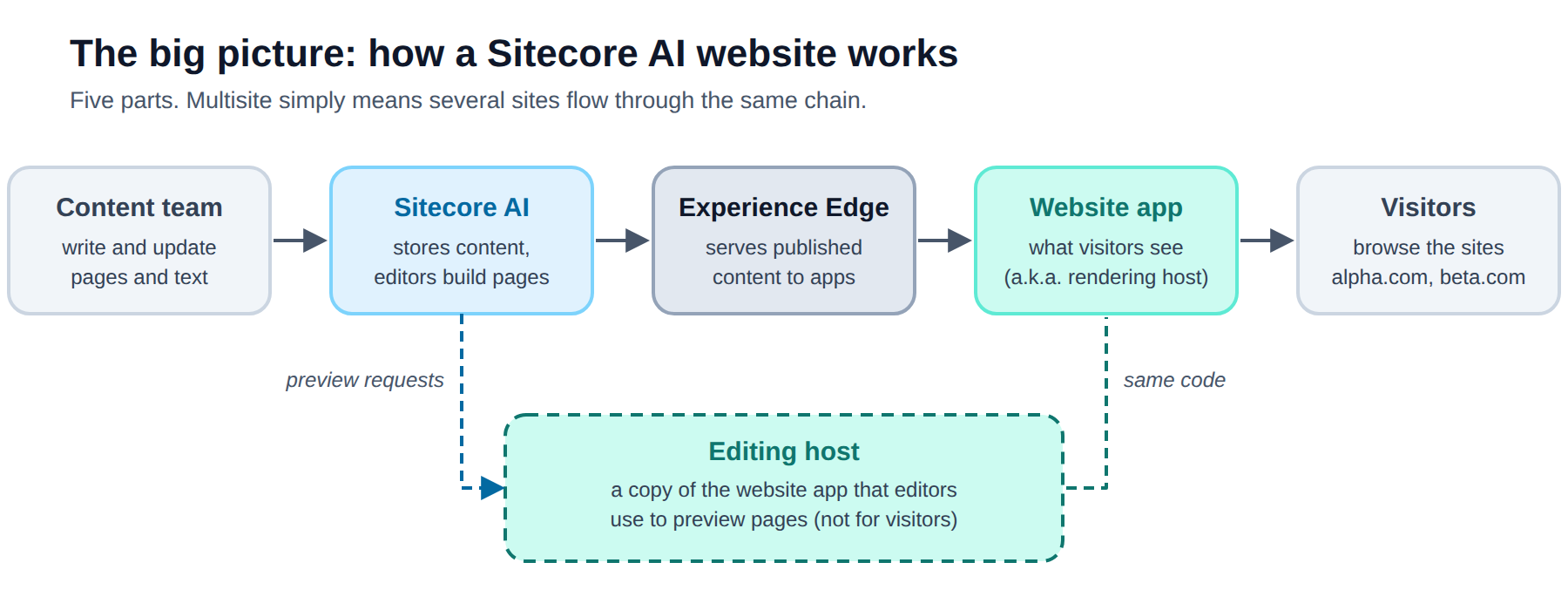
"Multisite" simply means several sites flow through this same chain. The real decision is how many website apps sit at the green box.
Step 1: Decide how to group sites inside Sitecore AI
Do this before you think about hosting, because hosting follows from it.
Several brands, each with its own content team: give each brand its own Site Collection.
One content team, or regional sites of one brand that need to share content: use one Site Collection.
The key rule: templates, components and content can only be shared between sites in the same Site Collection.
Inside one collection, you can share:
Content: reusable data items (links, images, text) and whole pages ("delegated areas").
Configuration: page and partial designs, styles, variants, available components, page templates and more.
Sitecore AI also provides site templates and site duplication (to create new sites consistently), cross-site linking, and per-site user roles.
Step 2: Choose how to host the website apps
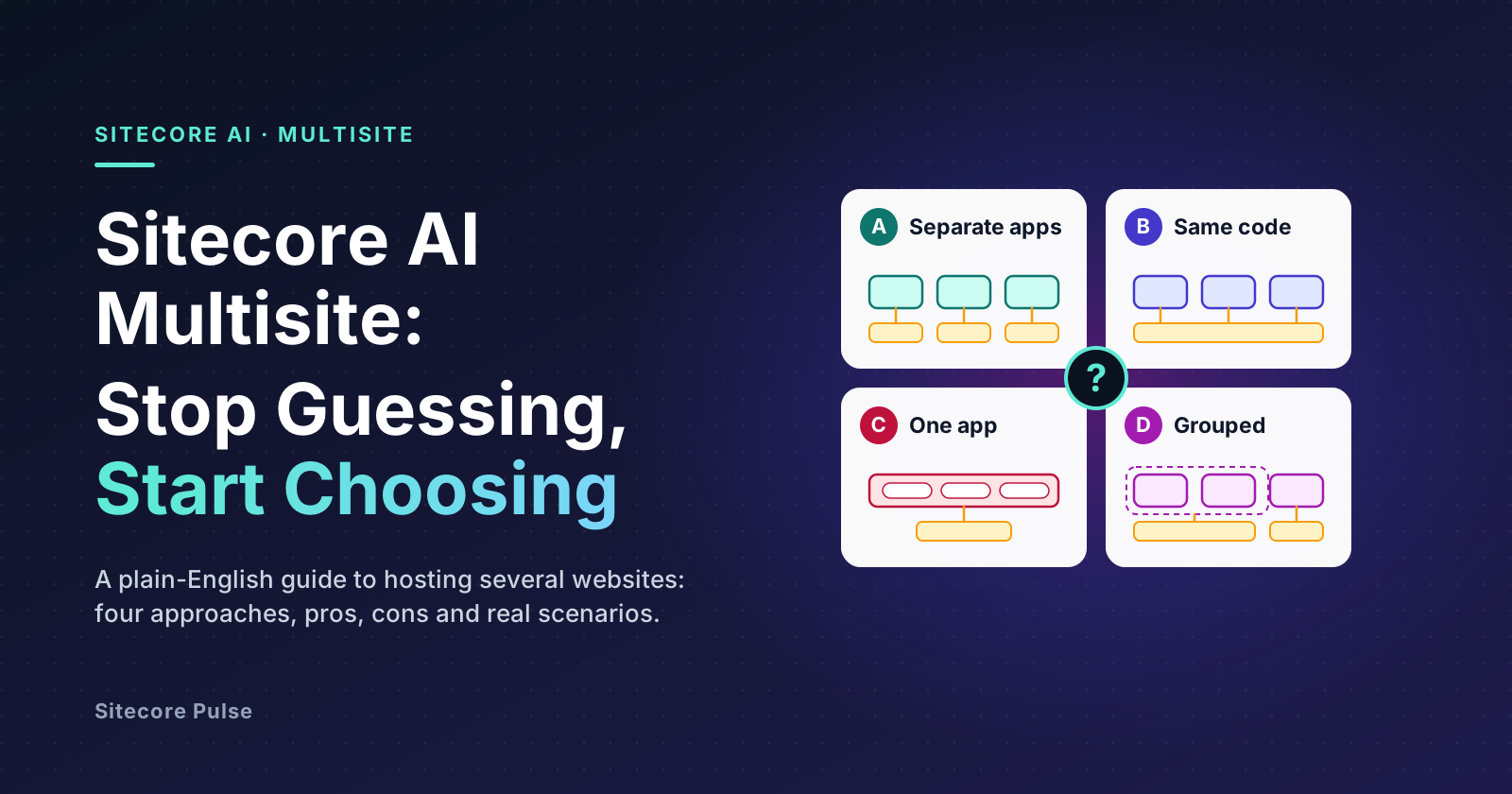
Sitecore describes two official paths: one app per website and one app for multiple websites. "One app per website" can also mean the same code deployed several times. That gives three documented approaches, plus a fourth, grouped combination.
Option A: Separate apps, separate code
Think of it as: separate shops on the same street, each with its own staff and rulebook.
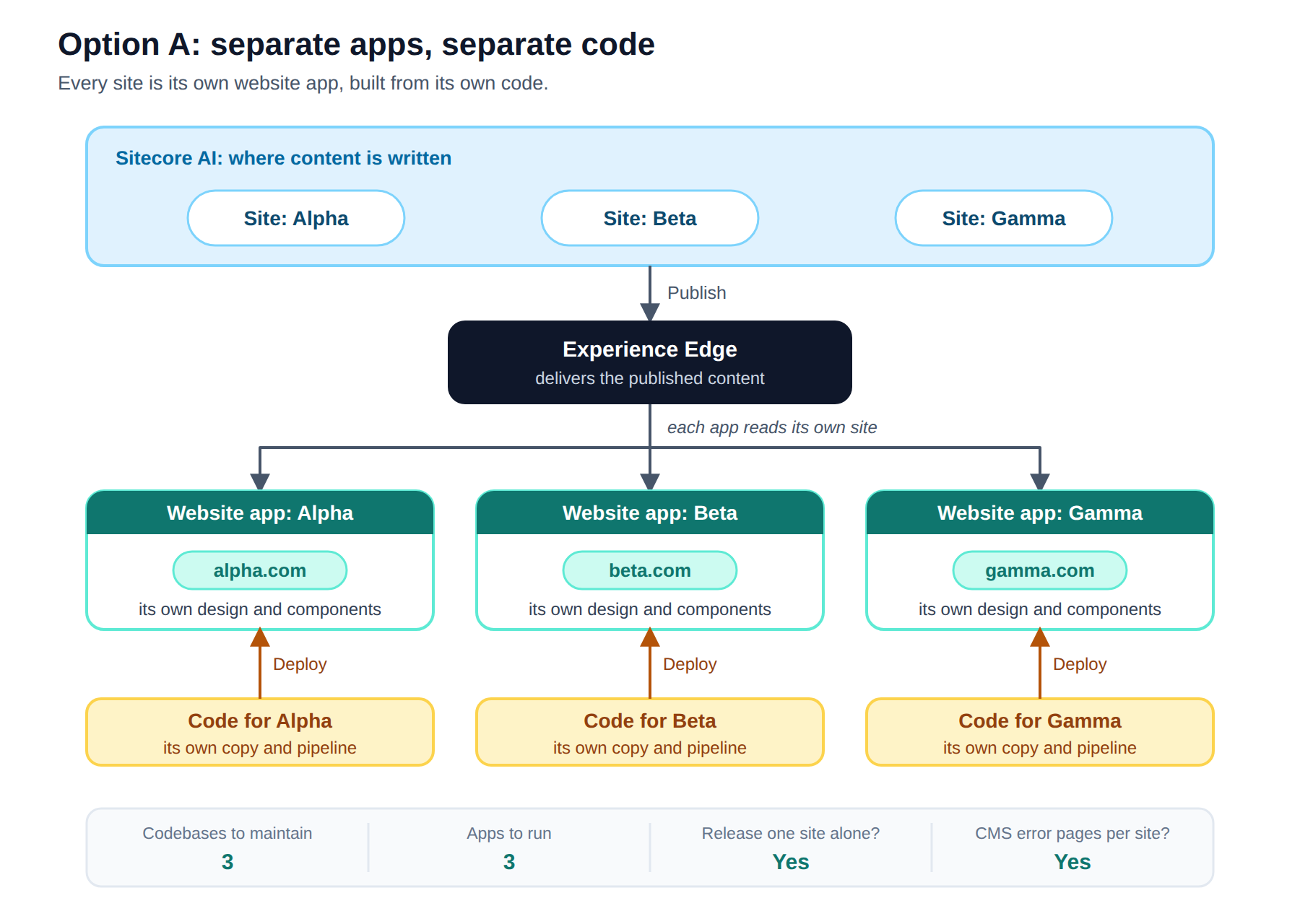
Every site is its own website app, built from its own code and deployed on its own.
Choose it when
Sites belong to different brands or teams and look and behave differently.
Each site must be released on its own schedule.
Each site needs its own CMS-managed 404/500 error pages.
Avoid it when
- The sites are nearly identical. You would maintain the same thing several times (see Option B).
Pros
Independent releases. This is the only option that allows deploying Site A without affecting Site B.
Each site can have its own look and code. A change cannot accidentally break another site, and testers only test the site being changed.
Own CMS-managed error pages per site. This is the only way to get them.
The standard way to run Next.js, with no site-switching step, so full Next.js performance.
Builds can run in parallel.
Cons
More to run. Many apps on your hosting platform means more cost and complexity for every hosting update.
Sharing a design system across apps needs extra tooling (workspaces or Turborepo), and Docker-based local development can be awkward.
Parallel builds can hit the Experience Edge rate limit (see Sitecore's recommended practices).
Each app needs its own editing host set up (see Editing hosts).
Care is needed so that CMS changes (templates, components) do not affect other sites. Separate Site Collections help.
What it means for your teams
Business: maximum independence per brand, at the price of more things to run and pay for.
DevOps: one hosting project and one pipeline per site. Add monorepo tooling if you share components.
Option B: Same code, one deployment per site
Think of it as: franchise outlets built from the same blueprint. Same shop, but each opens and closes on its own.
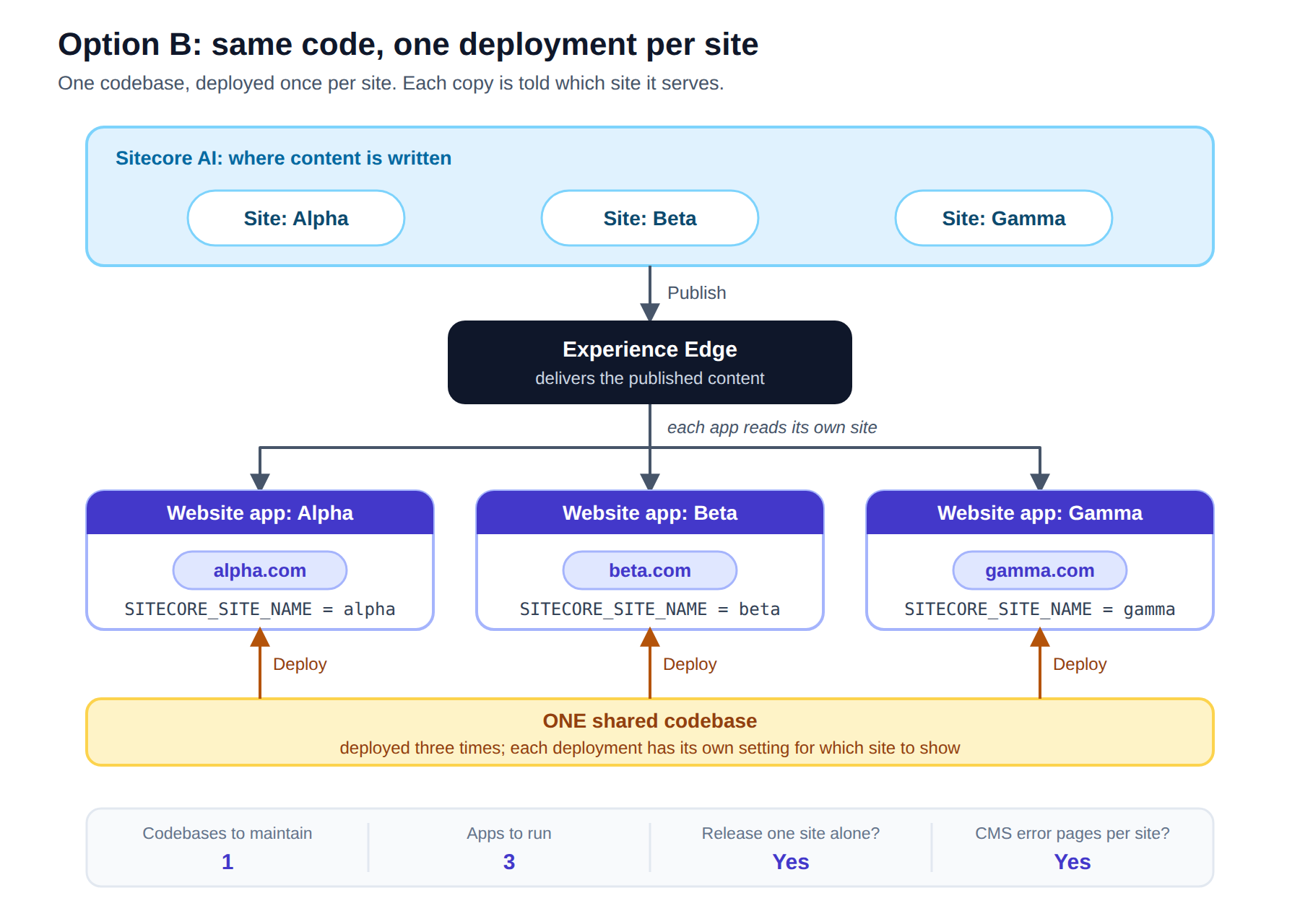
You keep one codebase but deploy it once per site. Each deployment gets a setting that says which site to show: SITECORE_SITE_NAME for Next.js, or Sitecore:DefaultSiteName for ASP.NET Core.
This is a good fit when sites share markup and styles but you still want the benefits of deploying them separately.
Choose it when
Sites share the same design and components, but must go live or be fixed on their own.
You need per-site CMS-managed error pages.
You want one place to maintain the code.
Avoid it when
Sites need very different designs and components (use Option A).
You want the absolute minimum number of things to run (use Option C).
Pros
Independent deployments and own CMS-managed error pages, like Option A.
One codebase, so a design system or shared component library is simple to keep.
No site-switching step, so standard Next.js performance.
Cons
Many deployments to configure and monitor, with the same hosting overhead as Option A.
Small visual differences between sites need conditional logic inside the shared code.
A bug in the shared code can reach every site as you roll it out, so regression testing still matters.
Parallel builds can hit the Experience Edge rate limit.
Each deployment needs its own editing host.
What it means for your teams
Business: a consistent look everywhere, with independent go-live dates.
DevOps: N deployments from one repository. Each needs its own site setting and editing host.
Option C: One app for all sites
Think of it as: one shop with several entrances. Staff check which door you came through and show the matching shelves.
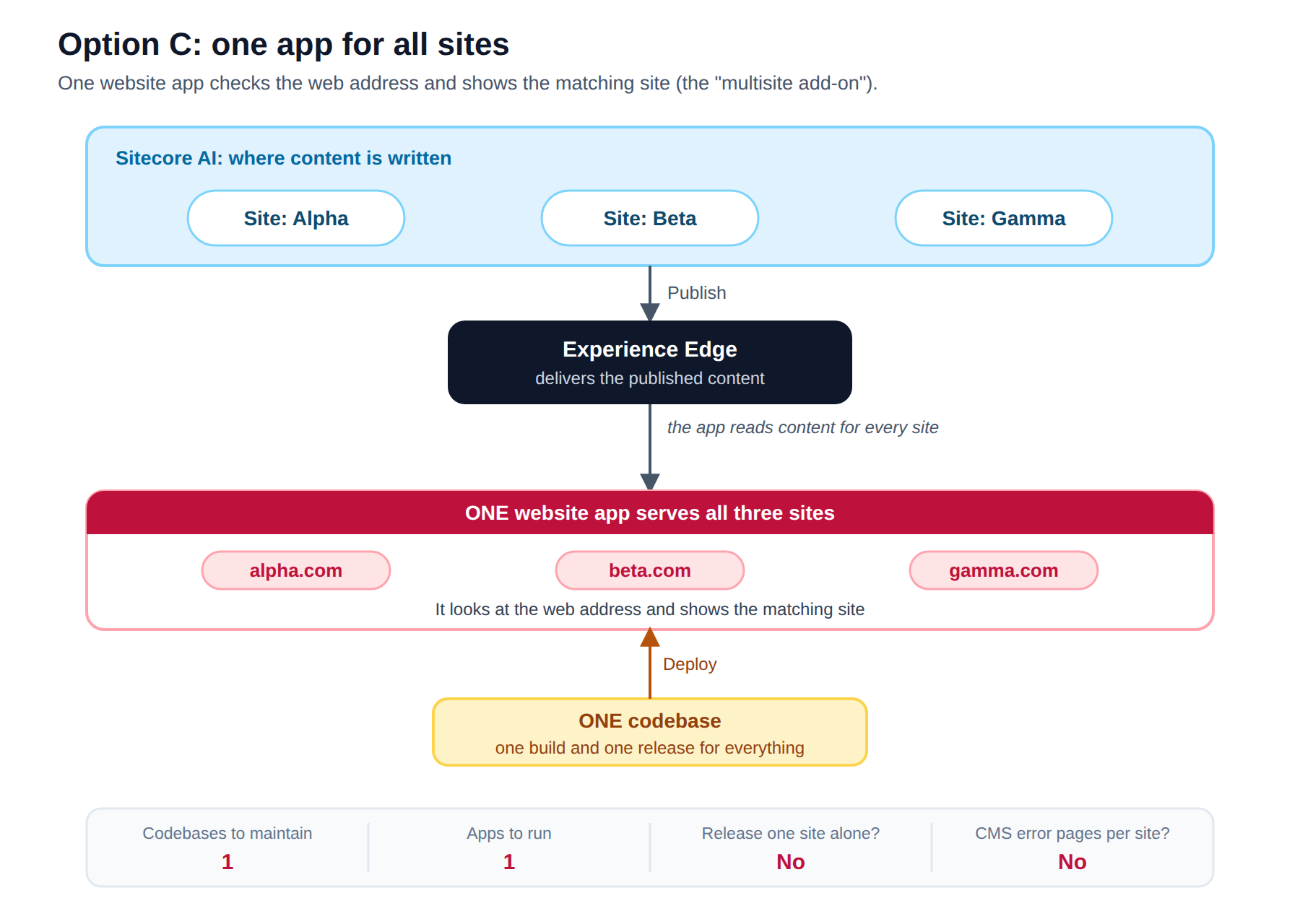
One website app serves every site. For Next.js this is Sitecore's multisite add-on: for each request, the app looks at the web address, works out which site it belongs to, and shows that site's content.
Choose it when
Sites share the same markup and styling, and only the content differs.
One content team and one development team look after all sites.
It is fine for all sites to be released together.
You have a small number of sites and want the simplest setup.
Avoid it when
A site must be released on its own.
Sites need different designs.
You need CMS-managed error pages per site.
Pros
Simplest to run: one app, one deployment, one pipeline. Hosting updates are easier and faster.
A shared design system is simple, because it is just part of the app. No extra tooling.
Cons
No independent releases. You cannot deploy one site's code without affecting every site.
Regression testing across all sites after any code change.
No CMS-managed 404/500 pages per site (see the note below).
No out-of-the-box theme support. For sites with different styles you must build a way to pick the theme.
A small performance cost on every request, because each one passes through the site-switching step. How much depends on the number of sites, so test it.
Long builds. By default all pages of all sites are generated at build time, which can stretch the build to many minutes. You can limit this by configuring which sites are included and which pages are pre-generated.
The list of sites is set when the app is built, so adding a new site means rebuilding and redeploying.
What it means for your teams
Business: lowest running effort, but every release touches every site.
DevOps: one pipeline. Plan for big builds and test the site-switching cost with your real number of sites.
About error pages in Option C. The documented limitation is about CMS-managed, per-site 404/500 pages. They are not supported because Next.js builds those two files once, at build time, and every site shares them. Developers can still change what the shared page shows in code. For example, they can use a neutral page that suits every brand, or add custom logic that adapts to the visitor's domain. That is custom work and not a pattern Sitecore documents, so test it before relying on it. If each site must have its own CMS-managed error pages, choose Option A or B.
Using ASP.NET Core instead of Next.js? The ASP.NET Core SDK includes a
MultisiteMiddlewarethat picks the site from the web address, but Sitecore's docs mark it as version 0.x, an alpha public release. Check its maturity before depending on it. The ASP.NET Core SDK also does not currently support custom site-specific error pages in any option.
Option D: Grouped, one app per group of sites
Think of it as: a shopping centre with a few shops, where each shop serves a whole family of brands.
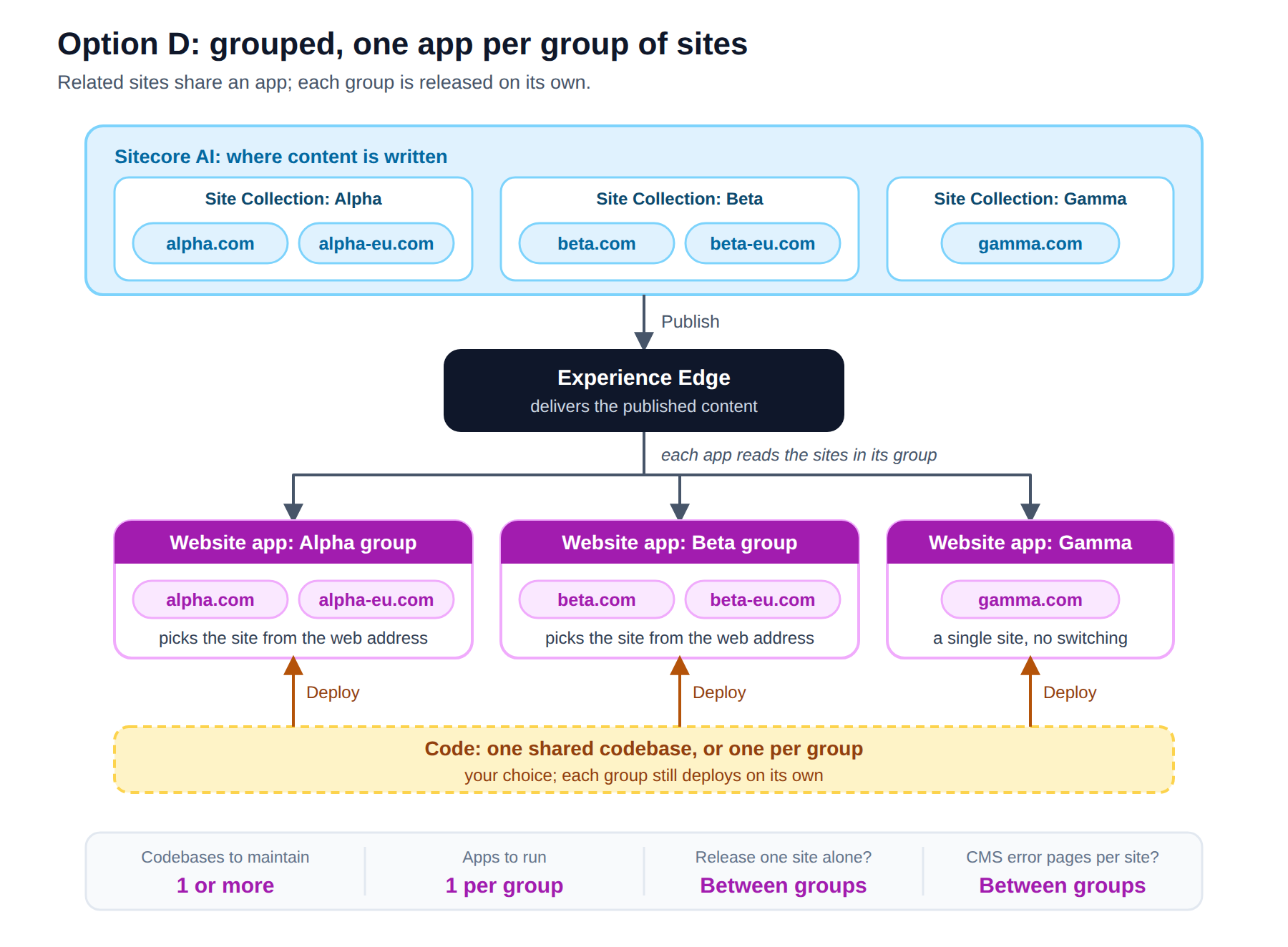
Sites are split into groups. Each group shares one website app (using the multisite add-on inside the group), and each group is deployed independently of the others. Groups usually line up with Site Collections.
This is not a named Sitecore pattern. It combines the two official paths, and it works because the multisite add-on can be limited to a chosen list of sites.
Two ways to set up the code
Option D leaves one more decision open: do the groups share a codebase, or does each group get its own?
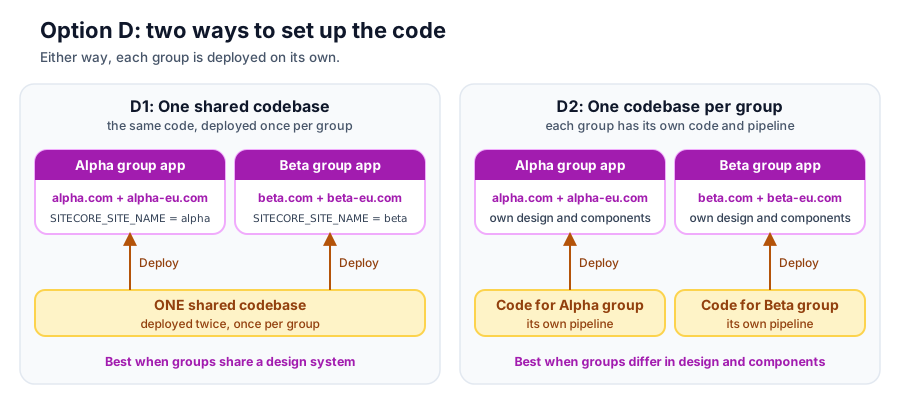
| D1: One shared codebase | D2: One codebase per group | |
|---|---|---|
| Best when | Groups share a design system and components | Groups have different designs and components |
| How it works | The same code is deployed once per group. Each deployment is told which site is its default and which sites to include. | Each group has its own code and its own pipeline. |
| Upside | One place to fix and improve. No extra tooling to share components. | Each group can evolve freely, and a change in one group's code cannot affect another group. |
| Downside | Differences between groups need conditional logic. The documented way to choose which sites an app includes is to list their names in the app's code, so a shared codebase needs that list driven by a per-deployment setting, which is a small custom change. | Shared components need extra tooling (workspaces or Turborepo), and there is more code to maintain. |
Rule of thumb: if the groups look and behave alike, start with D1. If each group is effectively its own product, use D2. Either way, each group is still deployed on its own.
Choose it when
You have brand families, such as two brands that each have regional sites.
Each family has its own team, design and release schedule.
Sites inside a family can safely be released together.
Avoid it when
- All sites are unrelated (use A or B) or all identical (use C).
Pros
Families release independently of each other.
Fewer apps to run than "one per site".
Smaller builds than one app for everything, because each app only builds its own sites.
Content-sharing boundaries (Site Collections) and hosting boundaries line up.
Cons
Inside a group, the Option C limits apply. Sites in the same group are released together, typically share error pages, and pass through the site-switching step.
Group boundaries are hard to change later.
Each app needs a correct site list. If a listed site (or the default site) has no content tree, static generation fails for all sites in that app.
More than one app to run.
What it means for your teams
Business: release independence per brand family, without paying for one app per site.
DevOps: one pipeline per group. Keep each group's site list correct.
Side-by-side comparison
| A: Separate apps | B: Same code, one per site | C: One app, all sites | D: One app per group | |
|---|---|---|---|---|
| Codebases to maintain | One per site | One | One | One, or one per group |
| Apps to run | One per site | One per site | One | One per group |
| Release one site without touching others | ✅ | ✅ | ❌ | ✅ between groups, ❌ inside a group |
| CMS-managed error pages per site | ✅ | ✅ | ❌ | ✅ between groups, ❌ inside a group |
| Very different designs per site | ✅ easy | ⚠️ needs conditional logic | ⚠️ you must build theme switching | ✅ between groups, ⚠️ inside a group |
| Effort to share components | ⚠️ needs extra tooling | ✅ none | ✅ none | ✅ none with one shared codebase, ⚠️ needs tooling with one per group |
| Risk one change breaks another site | Low | Low–Medium | High | Low–Medium |
| Day-to-day running effort | High | Medium–High | Low | Medium |
| Build size | One build per app | One build per app | One big build | One build per group |
The 30-second answer
| Your situation | Choose |
|---|---|
| A few sites, same design, one team, always released together | Option C: one app for all sites |
| Same design, but each site must be released on its own (or needs its own CMS-managed error pages) | Option B: same code, one deployment per site |
| Sites look and behave very differently (different brands, different teams) | Option A: separate apps, separate code |
| Sites fall into families (for example a brand plus its regional sites) | Option D: one app per group of sites |
| Not sure yet | Read the scenarios. If it is still unclear, Option B is a safe starting point |
Which option fits my scenario?
| Scenario | Recommended | Why |
|---|---|---|
| One global brand: a .com plus several country sites, same design, one marketing team | C (or B if countries need staged releases) | One team and one design suits a single app. Choose B if different countries must go live on their own. |
| Holding company with unrelated brands, each with its own team and design | A, with one Site Collection per brand | Separate content teams mean separate collections, and independent apps match that. |
| Same site template for many sites (dealers, franchises), changes rolled out gradually | B | One codebase, but each site can be updated on its own. Test build times and the Edge limit early. |
| Two brands, each with regional sites | D | Each brand family is a group, and brands never affect each other. |
| A brand family plus a campaign microsite with a very different look | D for the family, A for the microsite | Sitecore allows a mix of apps: same code, completely different, or a combination. |
| A site that must have its own CMS-managed 404 page (legal, brand or regional reasons) | A or B | This is only supported with separate apps. |
| Small team, limited DevOps capacity, starting out | C if the limits are acceptable, otherwise B | C has the fewest things to run. Know its limits before you start. |
| ASP.NET Core instead of Next.js | A or B | The documented path. C relies on a middleware still marked alpha. You will also need an external editing host. |
Many sites? Whatever you choose, test build time and the Experience Edge rate limit early. Both get harder as the number of sites and pages grows.
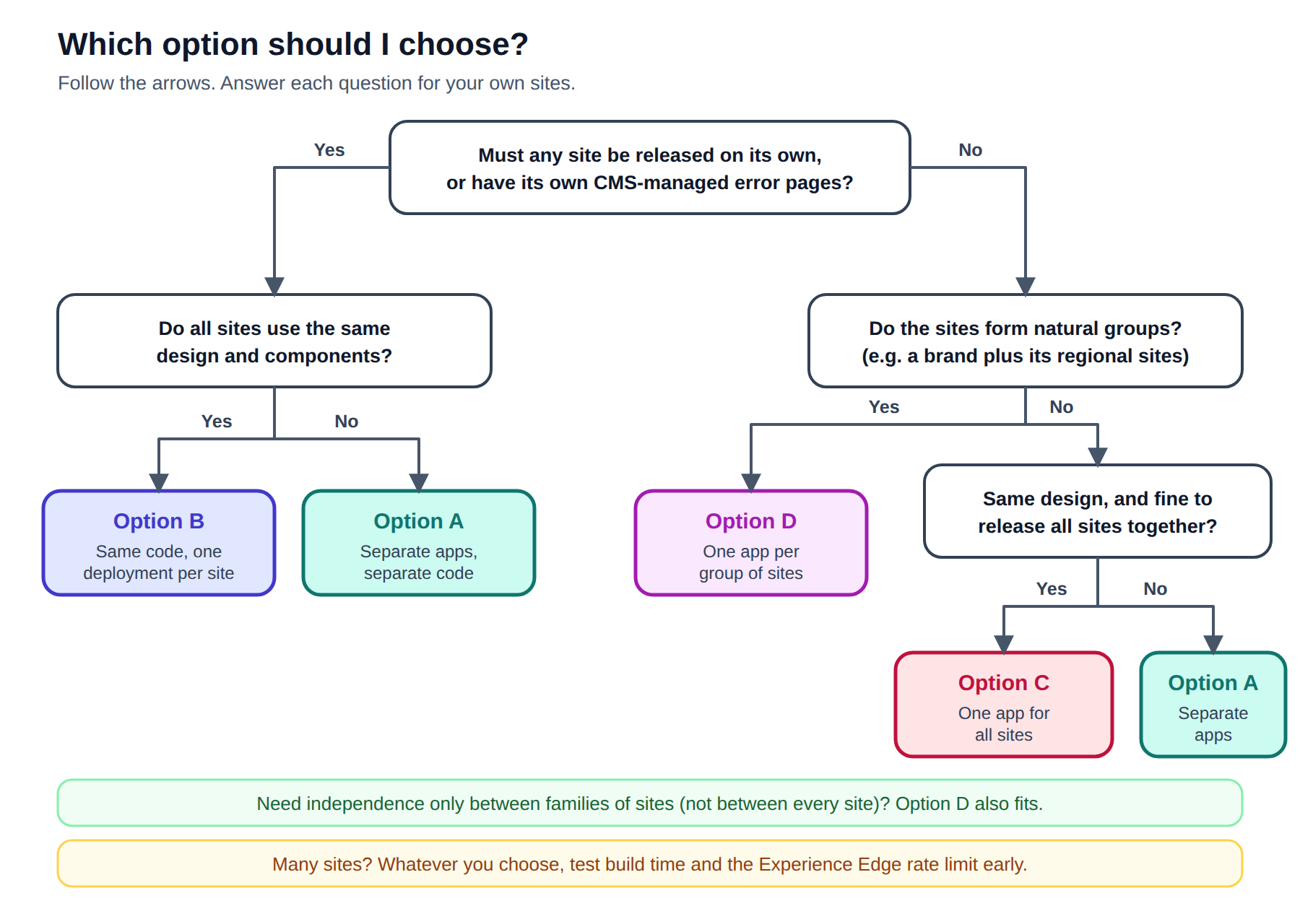
Decision flowchart
Editing hosts: the part people forget
Editors need a live preview while they build pages. That is the editing host: a copy of your website app that Sitecore AI's Page builder talks to. It is for editors only, and it is not set up or scaled for live visitor traffic.
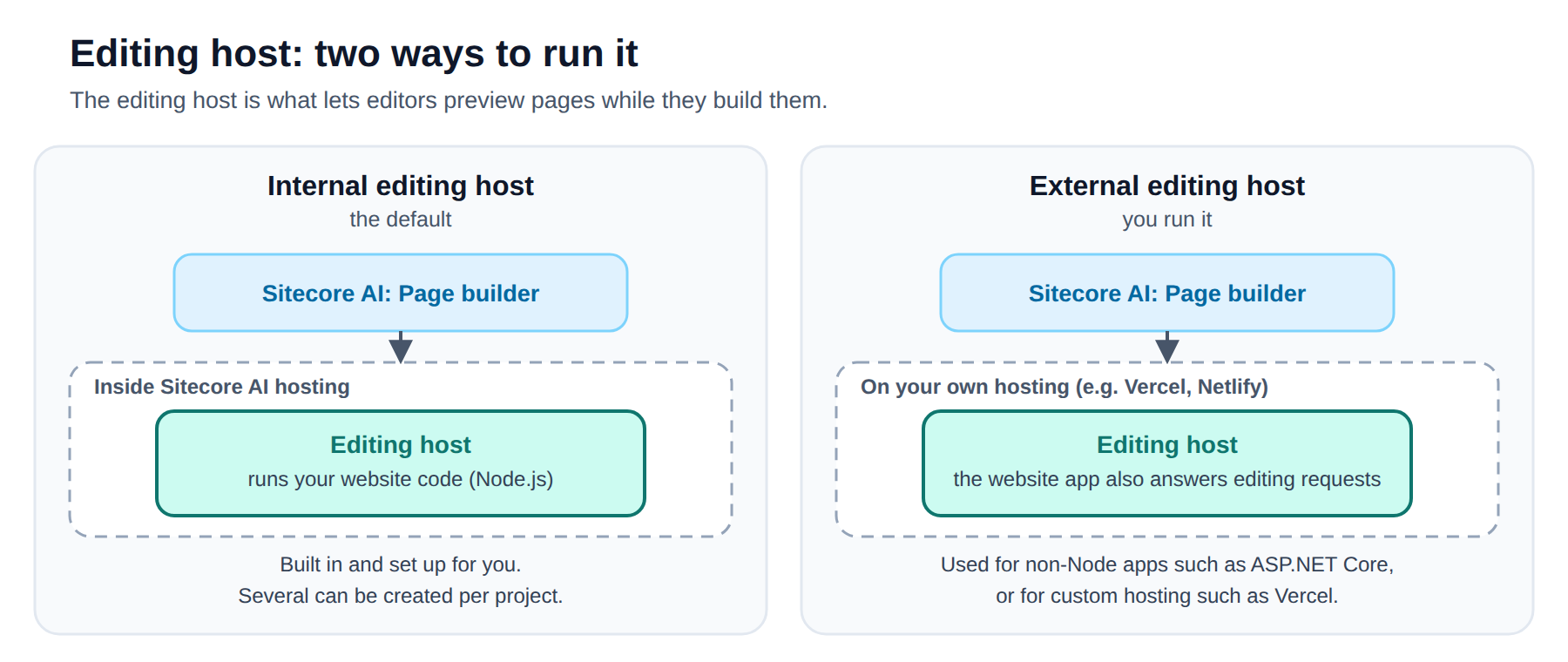
Two ways to run it
Internal (the default): Node.js apps hosted by Sitecore AI itself. Set up for you, and you can create several per project from the Deploy app.
External: you run it on your own hosting. It is for apps that are not, or cannot be, hosted natively by Sitecore AI, for example a non-Node stack such as ASP.NET Core, or custom hosting like Vercel. Only Node-based editing hosts can be hosted natively by Sitecore AI.
You point Sitecore AI at
https://<your-domain>/api/editing/render.The app needs the right settings, such as the Edge context ID and an editing secret.
Use the same provider for editing hosts and rendering hosts.
How many do you need?
Options A, B and D (several apps): one editing host per app. With separate apps you configure each site's editing host in
xmcloud.build.json, then make sure each site points at the right one through its "Predefined application editing host" setting.Option C (one app): one editing host for the one app.
Keep it in step. The editing host runs the same code as the website app and is updated when you deploy. Make sure both are updated together. If they drift apart, editors see something different from what visitors see.
Sitecore's recommended practices
Sitecore does not name one "best" multisite approach. It does publish these practices, which apply whichever option you choose.
Decide Site Collections by business structure first. Separate brands with separate teams get separate collections.
Host on a serverless platform. Sitecore recommends Vercel or Netlify. It does not recommend Azure App Services or other container-based or server-based hosting for Next.js.
Pre-generate pages and refresh them gradually. Use static generation, plus incremental static regeneration with a
revalidatetime. Set it to the longest staleness your business can accept. Incremental updates need Snapshot Publishing to be configured.Limit what is built up front. Pre-generate the home page, first-level navigation pages and your top-traffic pages. Other pages generate on first request. You can switch off build-time fetching entirely for the fastest builds.
Respect the Experience Edge fair-use limit of 80 uncached requests per second. Turn on retries (
GRAPH_QL_SERVICE_RETRIES), raise cache timeouts for the dictionary, personalization and redirect services, remove middleware you do not use, and throttle build threads if needed.Test the multisite add-on's performance with your real number of sites before committing to a single app.
Give every site its own specific hostname. Always define a default site as a fallback. Do not use
*as the target hostname, which causes errors when publishing.Create new sites from site templates or by duplicating a site. Put common content and configuration in a shared site.
With separate apps, set up one editing host per app and point each site at the right one.
A few practical tips
Pilot with two sites before rolling out to all of them.
When you run many apps, avoid starting every build at the same moment.
Write down why you chose your option, so the next team understands the decision.
Common pitfalls
Visitors see the wrong site. Usually a missing or incorrect hostname. When no hostname matches, the app falls back to the default site. Check every domain.
A new site does not appear (Options C and D). The site list is set when the app is built, so redeploy after adding a site.
One broken site breaks every build in a shared app (Options C and D). If a listed site has no content tree, static generation fails for all sites in that app.
Builds slow down or fail under load. Too many pages requested at once hit the Edge limit. Limit pre-generated pages, enable retries, and watch parallel builds.
Editors see something different from visitors. The editing host is out of step with the website app.
Surprise at error pages in Option C. Per-site CMS-managed 404/500 pages are not supported there. Decide this early.
Choosing Option C, then needing per-site releases. Going from one shared app to several later means restructuring. Decide your independence needs up front.
Summary
A: separate apps, separate code. Maximum independence and the most to run.
B: same code, one deployment per site. Independent releases and one codebase. A safe starting point when unsure.
C: one app for all sites. Simplest to run, but every release touches every site and per-site CMS error pages are not supported.
D: one app per group of sites. A middle path for brand families.
Pick the option that matches how your teams are organised and how independently your sites must be released, not the one that sounds most elegant. Then follow Sitecore's practices on builds, caching and editing hosts.
References
Documentation changes over time, so check the latest versions before committing to an architecture.
Comments
Join the discussionNo comments yet. Be the first to comment.